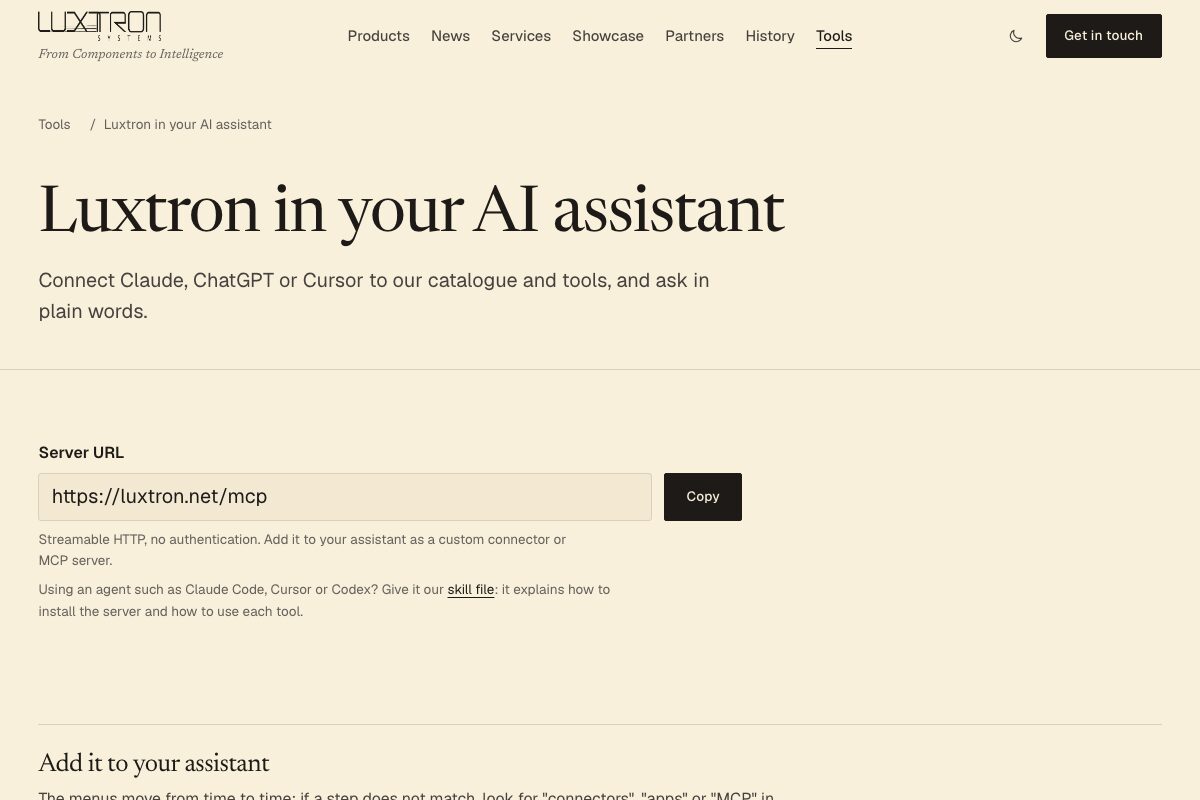
You can now connect Claude, ChatGPT, Cursor and other AI assistants straight to the Luxtron catalogue. Add one URL, https://luxtron.net/mcp, and the assistant can look up our products and item codes and run the same calculators as the tools on this site, instead of guessing.
What MCP is, in one paragraph
MCP (Model Context Protocol) is an open standard for giving an AI assistant tools it can call. The assistant reads what each tool does, decides when it needs one, and calls it while it answers you. For us it means an assistant asked about a Helvar driver or a Stucchi track run can check the live catalogue rather than rely on what it remembers from training, which is often out of date and sometimes simply wrong about item codes.
What the assistant can do with it
- Find products and codes. Search the catalogue of about 2,800 products by words or specs, look up a full or partial item code, and read a product's spec table and variants.
- Plan DALI lines. The same rules as our DALI line planner: 64 gear addresses and 64 control devices per line, the bus current budget after a spare margin, and an even split across lines.
- Size driver breakers. Drivers per MCB from the inrush and continuous current limits, as in the MCB calculator.
- Plan track runs. ONETRACK (230 V) and EVO (48 V) runs turned into a parts list with item codes, from the same parts map as the track run planner.
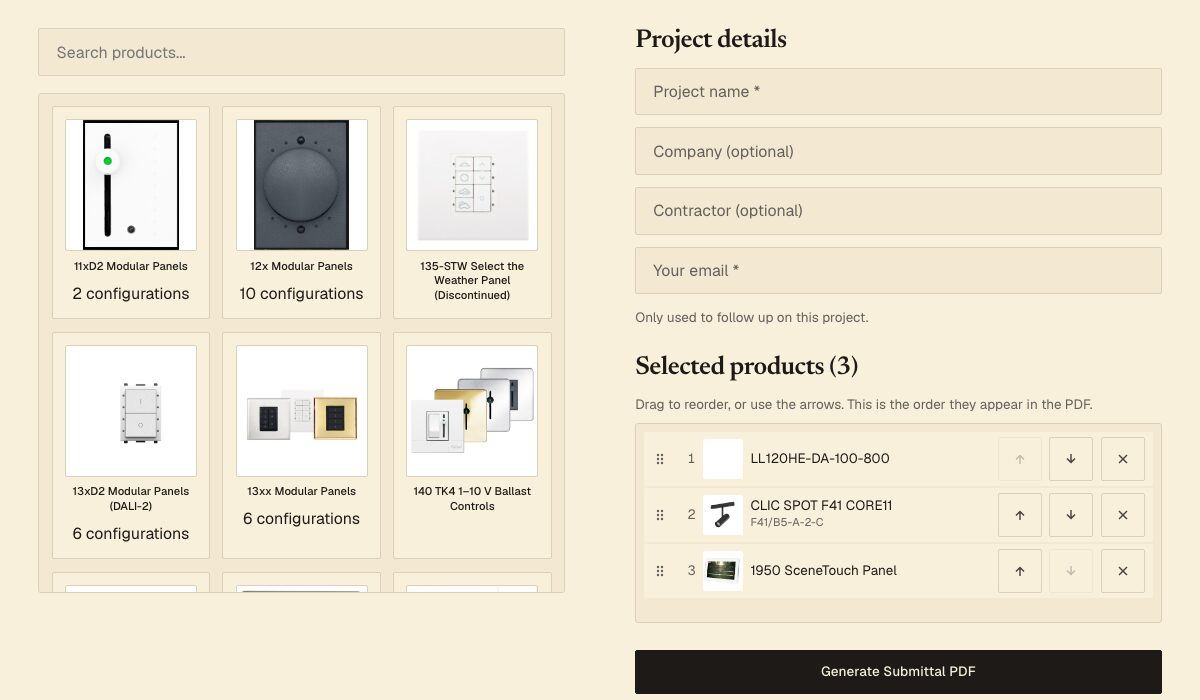
- Datasheets and submittals. Links to a product datasheet, or to the submittal builder with the products already selected.
- News and enquiries. Our guides and project stories, and a drafted enquiry email to us.
An example
Ask for a parts list for a 9 m by 6 m ONETRACK loop in white, Advanced profile, and the assistant calls the track planner with a closed loop. It comes back with 16 two-metre track sections, 12 straight couplers and 4 L couplers, each with its item code and a link, plus the notes the planner gives: the loop is fed through one L coupler, and the data bus is disconnected at one L joint so it does not form a ring. Ask it to turn that into a submittal and it asks for your email and project name, then hands you a link to the submittal builder with those parts already picked.
PDFs stay in your browser
The assistant does not attach files. Datasheets and submittals are built in your browser, as they are on the site: the assistant gives you the link, you open it and press download. Before a submittal or a datasheet it asks for your email, so we know who to follow up with. Prices and stock are not part of it. For those, the assistant drafts an email to us that opens in your own mail app, and nothing is sent until you press send.
How to connect
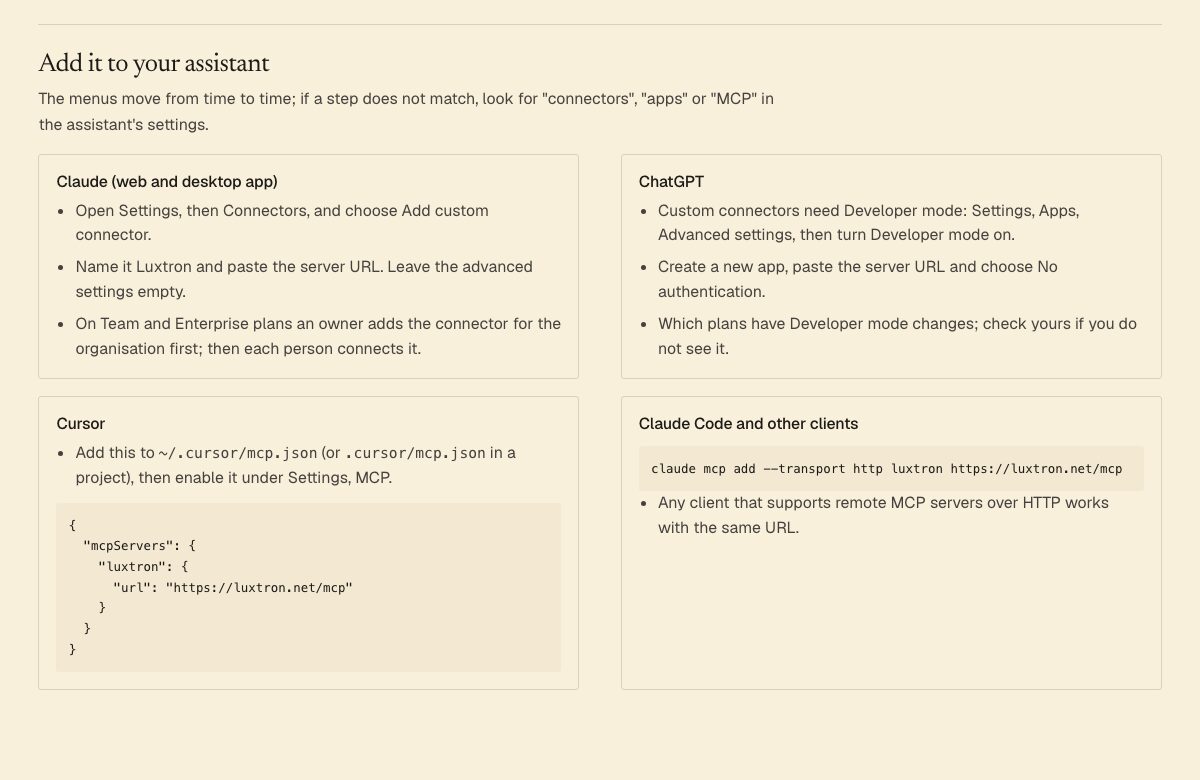
The server is free and needs no account or key. In Claude, add it under Settings, Connectors as a custom connector. In ChatGPT, turn on Developer mode and add it as an app. In Cursor or Claude Code it is one line of configuration. The steps for each, and a skill file you can hand to a coding agent, are on the setup page.
We log each tool call: which tool, what it was asked (search words, item codes, run lengths) and which assistant app made it. We never see your conversation with the assistant, only the calls it makes to us.
Try it on your next specification, and if the assistant gets something wrong or a tool you need is missing, tell us.